The Context Window Method for Time-Blocking Deep Work When Meetings Shift
Jamie
Time-blocking fails the moment your calendar changes
You block 9:00–11:00 for deep work. At 8:47, a meeting moves, a customer call appears, or a teammate asks for “just 15 minutes.” Suddenly your plan is either broken—or you spend more energy rearranging the day than doing the work.
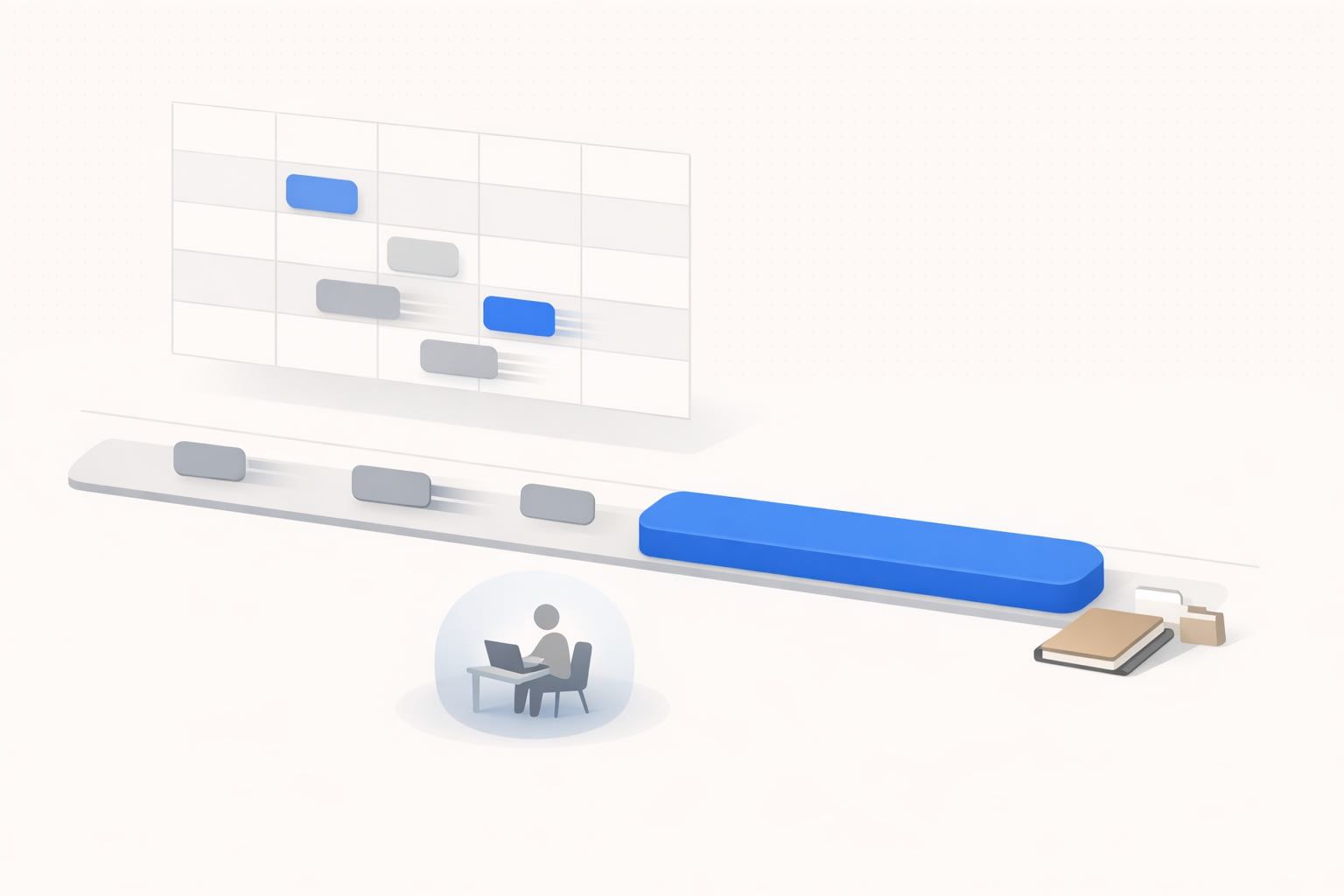
The Context Window Method is a simple way to time-block deep work without needing a perfect calendar. Instead of treating each block as a fragile appointment, you treat it as a protected window for a specific context (writing, analysis, coding, planning) that can slide within boundaries when meetings move.
What a context window is
A context window is a time range reserved for a single type of work, with two rules:
- One context only. The window is for one cognitive mode (e.g., “Spec writing” or “Bug triage”), not a mixed to-do list.
- Movable within guardrails. If a meeting lands on it, you relocate the window to the next valid slot instead of deleting it.
This small framing change matters because deep work usually fails for logistical reasons, not motivation. When the calendar shifts, people either abandon focus work entirely or re-plan endlessly. Context windows reduce that re-planning cost.
Build your day with two layers
Layer 1: Fixed anchors
Anchors are the non-negotiables: live meetings, interviews, deadlines, childcare pickup, team standups—anything that truly can’t move. Put them in first.
Also add recovery anchors if you know you need them: a short walk after a heavy meeting block, or a 15-minute buffer to capture notes.
Layer 2: Context windows
Now add two to four context windows around those anchors. Keep them realistic: 60–120 minutes is a sweet spot for most roles. Label them by context, not by task. For example:
- “Deep work: roadmap reasoning”
- “Deep work: writing and decision docs”
- “Operations: inbox + approvals”
- “Customer signals: triage + tagging”
Within each window, you can pick the best task that matches the context. This helps when priorities shift mid-day without forcing you to rewrite the calendar.
How to set guardrails so windows can move without chaos
A context window only works if it has clear boundaries. Use these guardrails:
- Latest start time. “This writing window must start by 2:30 PM, otherwise it becomes tomorrow’s first block.”
- Minimum viable duration. “If I can’t get 60 minutes, I’ll do a 25-minute ‘starter’ session and queue the rest.”
- One move per day. You can slide a window once. If it gets bumped again, you protect it by converting another slot (often a shallow-work block) into the window.
- Hard stop. End on time. Context windows build trust when they don’t balloon and steal from later commitments.
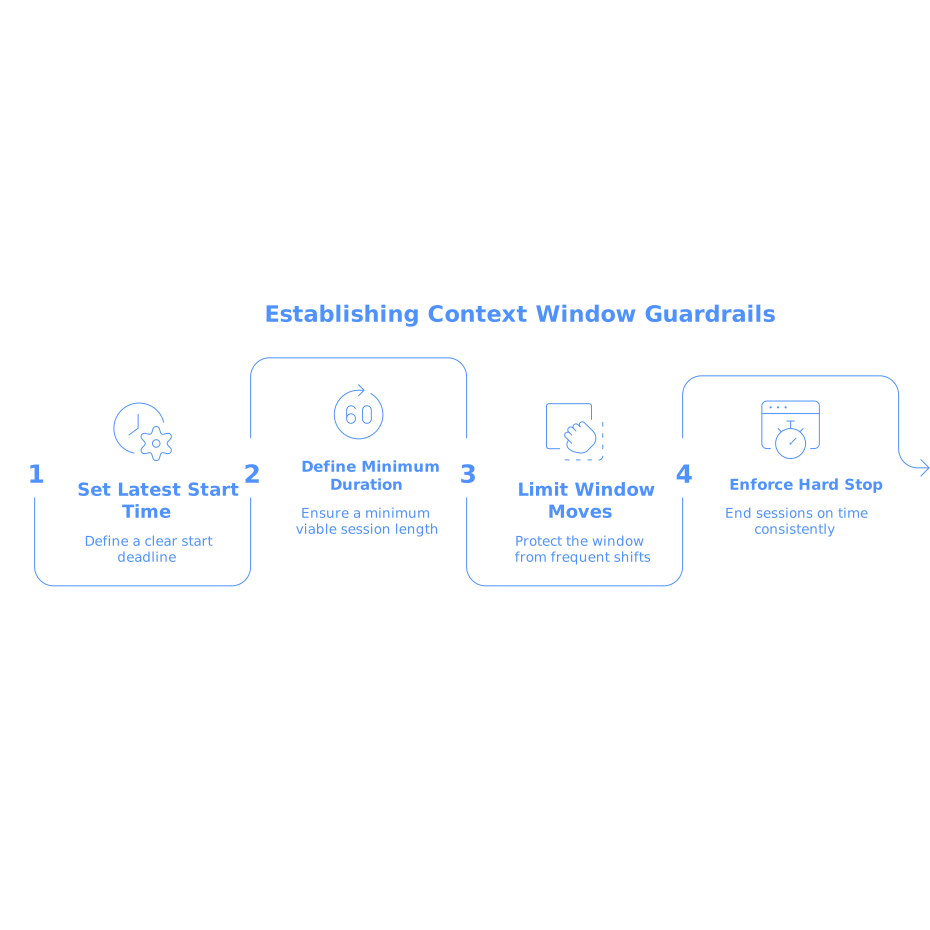
These constraints prevent the common failure mode of “I’ll just push it later,” repeated until deep work never happens.
The rescheduling protocol when meetings move
When a meeting lands on a context window, don’t negotiate with yourself for 10 minutes. Use a short protocol:
- Confirm the context. Keep the same label and intent. You’re moving a mode of work, not re-planning your whole day.
- Find the next valid slot inside guardrails. Prefer a slot adjacent to another focus-friendly period (e.g., after lunch, before a routine meeting).
- Preserve the on-ramp. Add a 5-minute lead-in (open docs, set the question you’re answering, close chat). Deep work often fails at the start, not the middle.
- Convert, don’t cram. If the day is packed, convert a shallow-work block into the context window and push shallow work to a smaller leftover pocket.
This is also where an integrated workspace helps. In Routine, it’s easier to treat tasks, notes, and calendar as a single planning surface—so moving a window doesn’t separate the time from the work you intended to do in that time.
Make the window actionable with a “context backlog”
Context windows stay resilient when they’re backed by a small backlog per context. Instead of one giant task list, keep 5–10 items tagged or grouped by the context they require. Then, when a window shifts, you’re not deciding what to do from scratch—you’re choosing from a shortlist that already fits.
This is particularly important for teams flooded with incoming requests. Many “urgent” interruptions are either duplicates or echoes of unresolved issues. If you’re dealing with that pattern across channels, it helps to recognize and consolidate demand early—otherwise your focus windows become a casualty of noise. The pattern is explored well in Feedback Debt and How to Spot Duplicate Requests Across Support Sales and Forums.
Protect deep work from the hidden meeting aftermath
Meetings don’t just take time; they leave residue. If you schedule a context window immediately after a high-stakes call, you’re more likely to drift into follow-ups, Slack replies, or rehashing the discussion.
Use a small “after-meeting capture” buffer (5–15 minutes) as a boundary. The goal is to offload:
- Decisions made and who owns what
- Open questions
- Next actions (with a real time slot or context tag)
When you do this consistently, meetings stop bleeding into deep work windows—and moving meetings doesn’t automatically destroy the rest of the day.
Example day using context windows
Here’s a realistic layout for someone whose meetings move often:
- 9:00–9:30 Anchor: standup + quick capture
- 9:45–11:15 Context window: deep work (writing decision doc)
- 11:30–12:00 Anchor: customer call
- 12:00–12:15 Buffer: capture + schedule follow-ups
- 1:30–2:30 Context window: deep work (analysis / planning)
- 2:30–3:15 Operations window: inbox, approvals, lightweight coordination
- 3:30–4:00 Anchor: team sync
- 4:00–4:45 Context window: customer signals (triage + tagging)
If the 9:45 block gets hit by a moved meeting, you slide that same “writing decision doc” window to the next valid slot (often 1:30) and convert the original 1:30 analysis window into a shorter session or move it to tomorrow morning. The day stays coherent because the contexts remain intact even if the times change.
Common mistakes that make time-blocking brittle
- Blocking by task names. Tasks change; contexts persist. Block for “writing,” not “Write section 3.2.”
- No boundaries. If windows can move anywhere, they move to “never.” Use latest start times.
- Trying to save every shallow task. When the calendar compresses, protect deep work first and let shallow work shrink.
- Ignoring the silent queue. Untracked bugs and low-grade issues pile up and explode into “emergencies,” eating focus windows. If that dynamic sounds familiar, The Silent Queue Problem and How to Keep Customer Bugs From Derailing Your Roadmap pairs well with this method.